Ready to monitor your 3PL?
Install from Shopify to get started, or sign in to your account.
Setting Up SFTP Integration
Connect to your 3PL's SFTP server for automatic CSV imports
Import fulfillment data automatically from your 3PL’s SFTP server. Once configured, 3PL Pulse fetches CSV files on your sync schedule without manual uploads.
When to Use SFTP
Use SFTP integration when your 3PL:
- Exports fulfillment reports to an SFTP server
- Doesn’t have a direct API integration
- Provides scheduled file exports
If your provider has a direct API integration (like ShipBob), use that instead for real-time data.
Setting Up SFTP
- Go to Providers and select your provider
- Click the Connection tab
- Choose SFTP Import as the sync method
- Click Configure SFTP Connection
Server Settings
| Field | Description |
|---|---|
| Host | Your SFTP server address (e.g., sftp.your3pl.com) |
| Port | Usually 22 (the default) |
| Username | Your SFTP login username |
| Authentication | Password or Private Key |
For password authentication:
- Enter your SFTP password
For private key authentication:
- Paste your private key
- Add passphrase if the key is encrypted
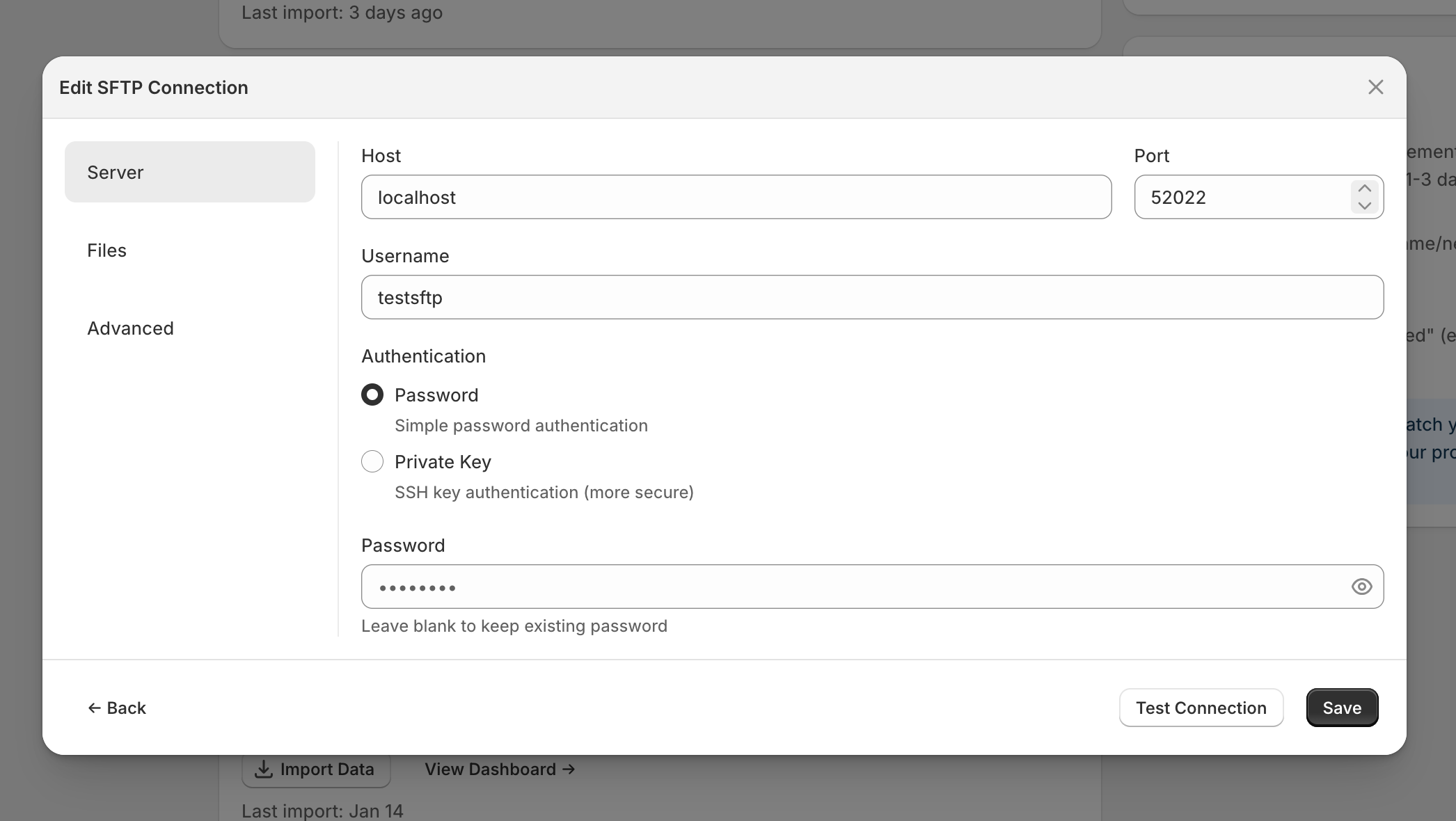
Server tab with authentication options
File Settings
| Field | Description |
|---|---|
| Remote Path | Directory where your 3PL exports files (e.g., /exports/) |
| File Pattern | Which files to import (default: *.csv) |
| After Import | What to do with files after importing |
After Import options:
- Leave in place (recommended) - Files stay on the server
- Move to archive folder - Files move to a folder you specify
- Delete after import - Files are removed after importing
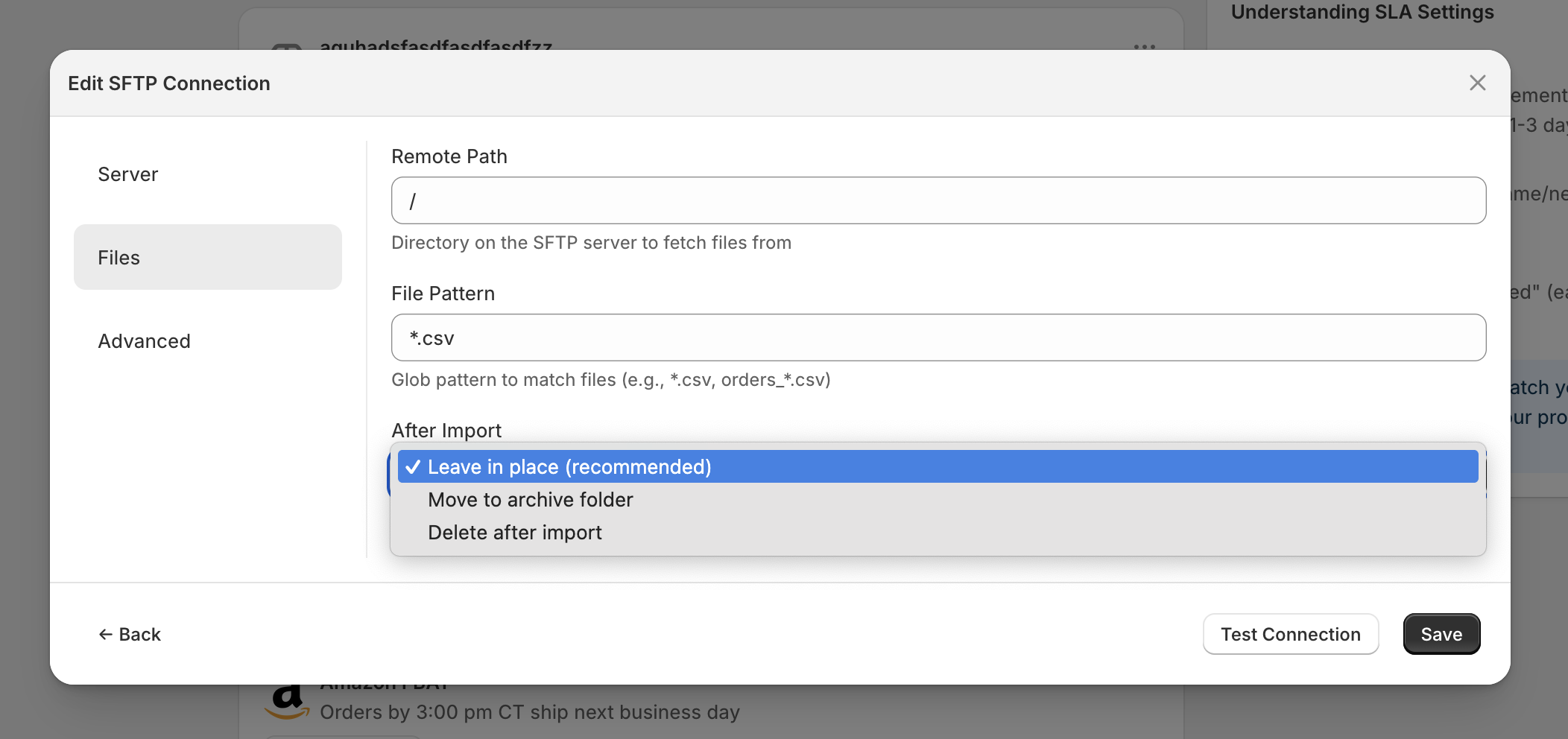
Files tab showing import options
Advanced Settings
| Field | Description |
|---|---|
| Host Fingerprint | Optional. For extra security, verify the server’s identity |
| Connection Timeout | How long to wait for connection (default: 30 seconds) |
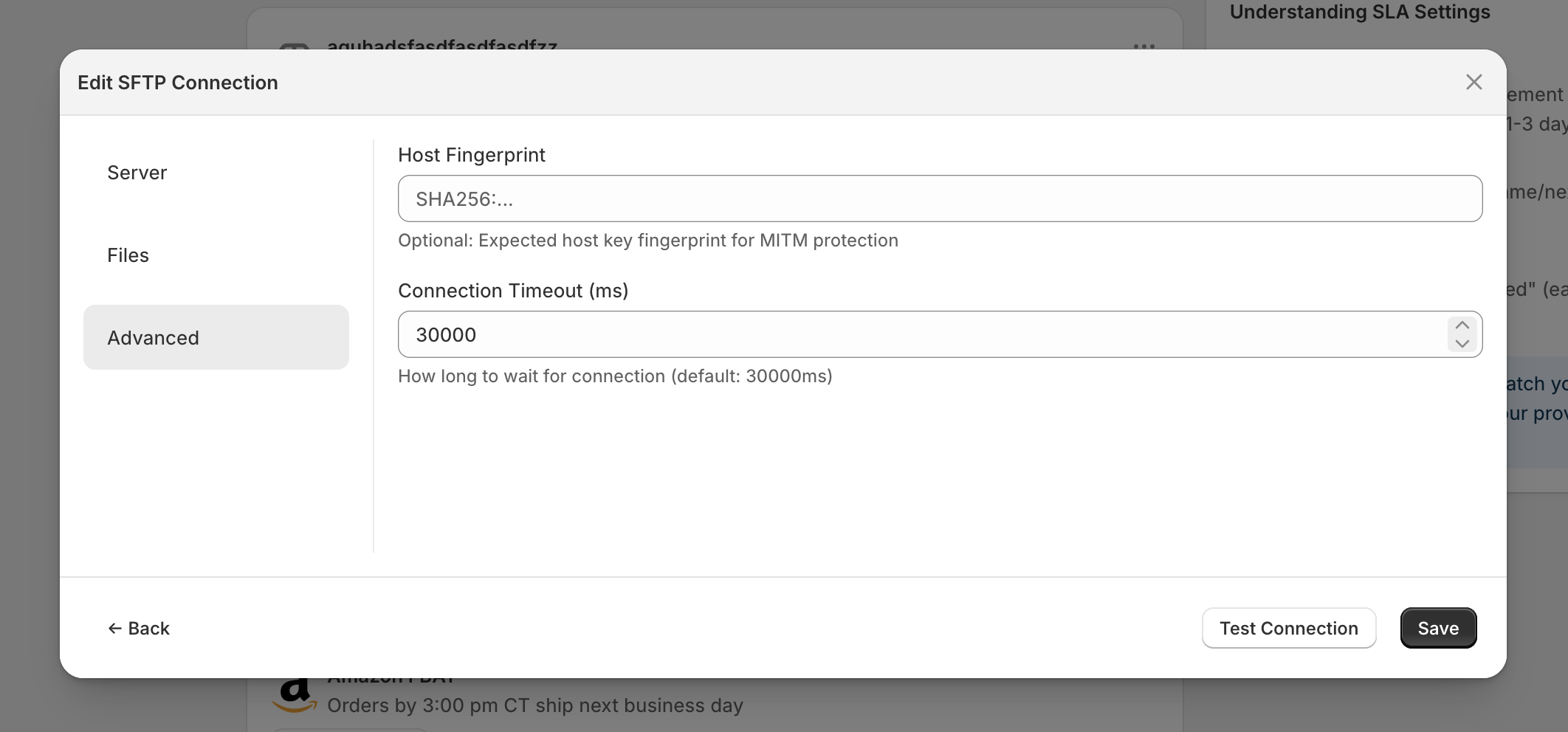
Advanced tab with security and timeout options
Testing Your Connection
Before saving, click Test Connection to verify:
- Server is reachable
- Credentials are correct
- Remote path exists
- Files matching your pattern are found
Fix any errors before saving.
How Sync Works
Once configured:
- On your sync schedule, 3PL Pulse connects to the SFTP server
- Finds files matching your pattern in the remote path
- Downloads and processes each CSV file
- Updates your dashboard with the new data
Files are processed based on your “After Import” setting.
File Format Requirements
Your CSV files should include:
- Order reference numbers (matching your Shopify orders)
- Ship dates
- Tracking numbers
- Carrier information
See Importing 3PL Data for detailed CSV format requirements.
Troubleshooting
Connection Failed
- Verify host address is correct
- Check username and password/key
- Confirm your IP isn’t blocked by the SFTP server
- Try increasing the connection timeout
No Files Found
- Check the remote path exists
- Verify your file pattern matches the actual filenames
- Confirm files are in the expected location
Authentication Errors
- For password auth: verify the password is correct
- For private key: ensure the full key is pasted, including header/footer lines
- Check if passphrase is required for encrypted keys
Files Not Processing
- Verify CSV format matches expected columns
- Check for encoding issues (use UTF-8)
- Look for malformed rows in the CSV
Security
- Credentials are stored encrypted
- Connections use SFTP (SSH File Transfer Protocol)
- Optional host fingerprint verification prevents man-in-the-middle attacks
- We only read files from the specified path
Next Steps
- Configure your provider settings to set SLA terms
- Understand your metrics once data starts flowing
- Set up automatic sync to keep data fresh
Was this helpful?