Ready to monitor your 3PL?
Install from Shopify to get started, or sign in to your account.
Shopify Staff Permissions for 3PL Pulse
How to grant a staff member access to 3PL Pulse in Shopify
3PL Pulse is installed at the store level, but each staff member needs to be granted access individually. If you can’t see 3PL Pulse in your Shopify admin, your store owner or admin needs to update your permissions.
Quick Test
Search “3PL Pulse” in the Shopify search bar at the top of your admin. If it doesn’t appear in the results or in your sidebar, it’s a permissions issue.
What Your Admin Needs to Do
Send these steps to your store owner or whoever manages staff permissions:
Step 1: Open Staff Permissions
- In Shopify admin, go to Settings
- Click Users and permissions
- Click the staff member’s name
Step 2: Grant App Access
Scroll down to the App and sales channel permissions section:
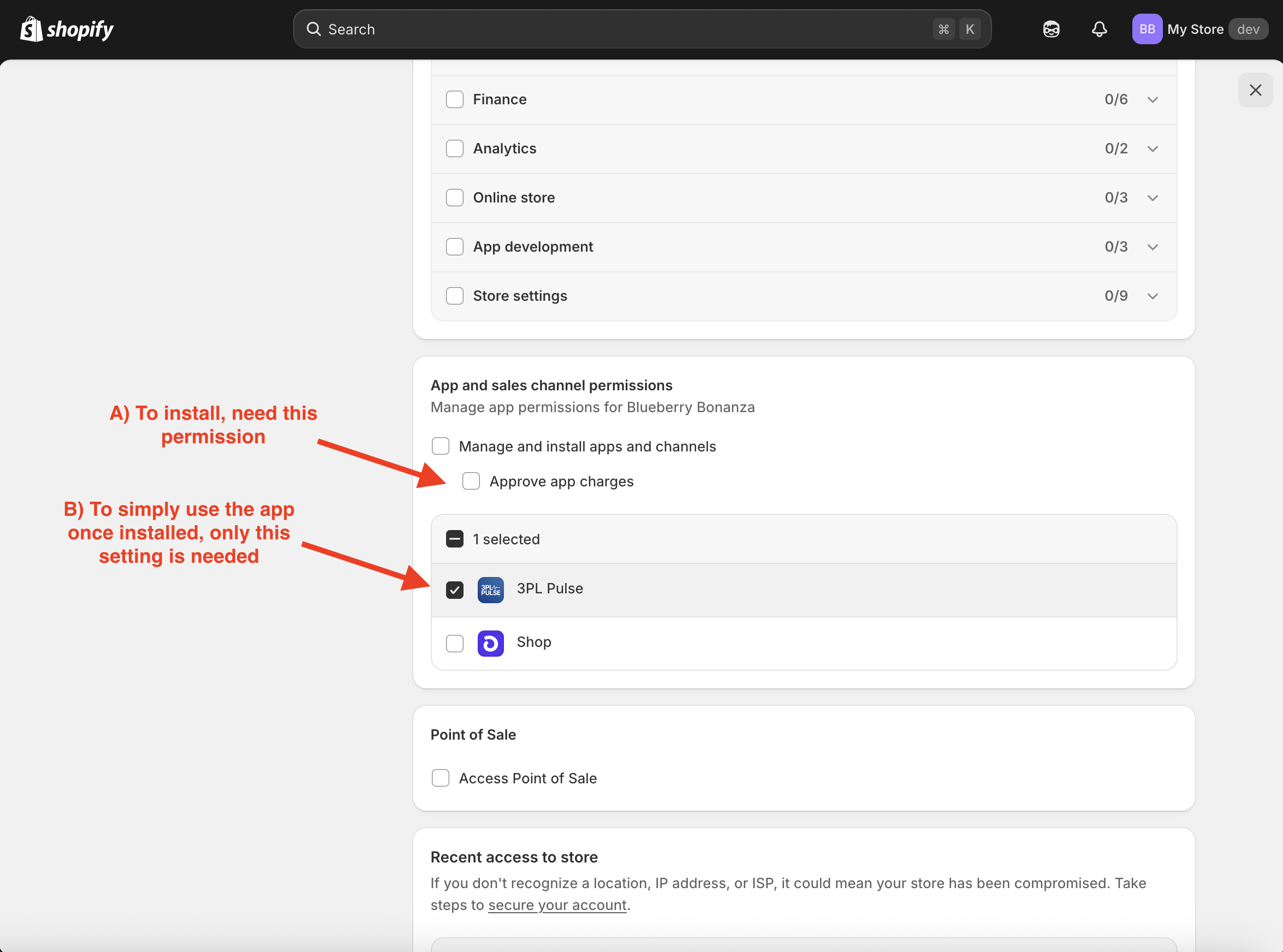
Settings > Users and permissions > Staff member > App and sales channel permissions
Two things to check:
- A) To install the app, the staff member needs Manage and install apps and channels
- B) To use the app once installed, select 3PL Pulse from the app list
If the staff member just needs to use the app day-to-day (someone else already installed it), only B is required. Check Approve app charges too if this staff member will be the one approving the billing plan.
Step 3: Save
Click Save at the top of the page.
The staff member can now refresh their Shopify admin and open 3PL Pulse from the sidebar or search.
Who’s Who
| Role | What they can do |
|---|---|
| Store owner | Full access to everything. Can always install apps and approve charges. |
| Staff with app access | Can open and use 3PL Pulse. Needs to be granted access (steps above). |
| Staff without app access | Can’t see or open 3PL Pulse. The app still works for the store - they just can’t access it. |
Common Questions
”Do I need the store owner to install the app?”
Not necessarily. Any staff member with Manage and install apps and channels permission can install apps. But to use the app day-to-day, each staff member needs direct access granted.
”You need permission to approve app charges”
If you see this banner on the billing page, your account doesn’t have the Approve app charges permission:
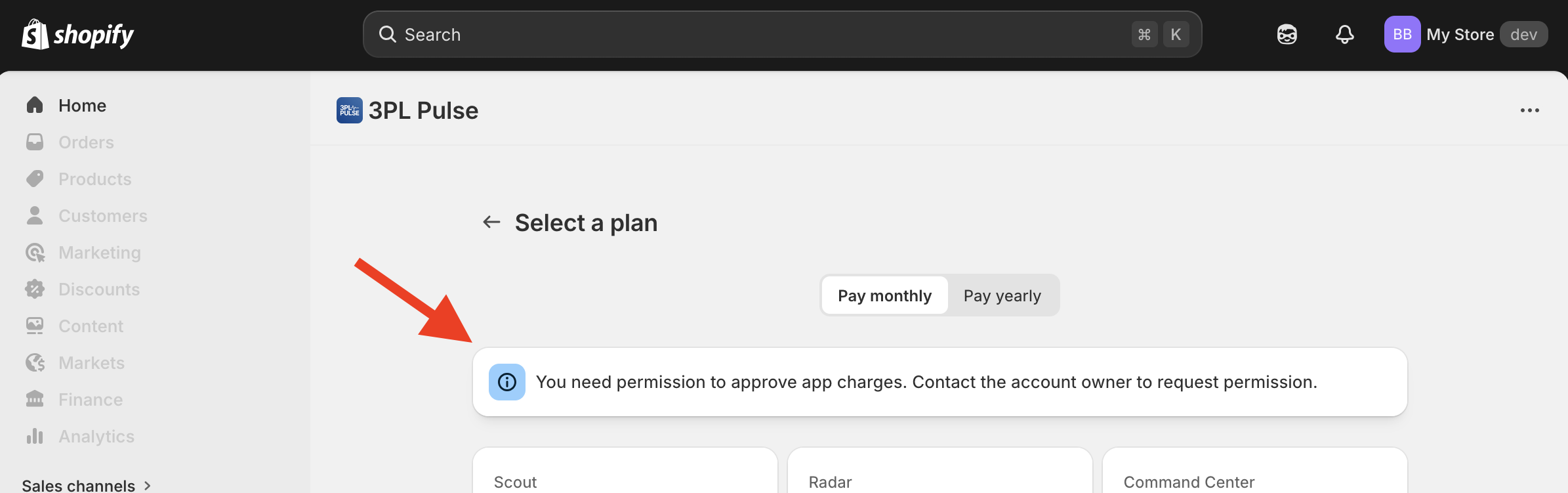
Staff members see this banner if they don't have the "Approve app charges" permission
Ask your store owner to either approve the charge themselves, or grant you the Approve app charges permission (see Step 2 above).
”I’m the only person who manages the store”
Check if you’re logged in as the store owner or as a staff member. The store owner (the account that created the Shopify store) has all permissions by default. If you’re a staff member, you’ll need the owner to grant access even if you’re the only one using the store day-to-day.
Next Steps
Once your permissions are set:
Need Help?
See our troubleshooting guide for other common issues.
Was this helpful?